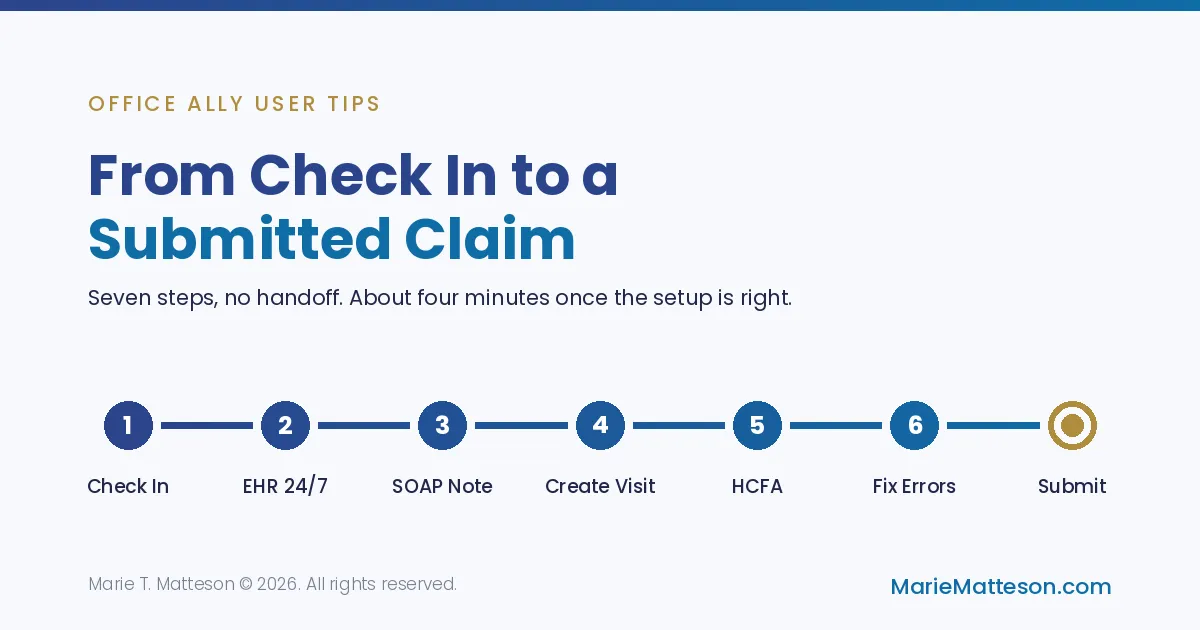
How to Go From Check In to Submitted Claim in Office Ally
Most practices treat billing as something that happens later. The patient leaves, a note gets written, paper or a PDF goes off to whoever does the billing, and three days later somebody asks a question about a visit nobody remembers.
That gap is where claims go to die. It is also completely optional.
Office Ally lets the practitioner create the visit from inside the note, at the moment the care actually happened, while the details are still in your head. No handoff. No paper. No waiting.
Here is the whole loop, start to finish. It takes about four minutes once it is set up.
Step 1: Check in, in Practice Mate
Open the appointment. If the patient has a copay, Practice Mate tells you before you do anything else. A $25 copay shows as an alert right on the appointment, which means the front desk can collect it at check in instead of billing for it later and chasing it for six weeks.
Hit update. Then when you go to check the patient in, you get a popup with a check in checkbox at the bottom. Tick it, hit update again, and they are checked in.
Small thing, but that copay alert is the difference between money now and an invoice you will send twice.
Step 2: Into EHR 24/7
Practice Mate is married to EHR 24/7, so the patient is already there. No re entry.
Keep EHR 24/7 open in a separate tab. Not because the software requires it, but because of privacy. You do not want a schedule with every patient's name on it sitting behind a chart you are showing someone.
In EHR 24/7 you see every patient on the schedule for that day. Click the one you called back and you are in the chart.
Step 3: The note
Create a progress note. You can use a system note, but the better answer is a custom SOAP note. There are templates, and you can build guidelines that are specific to how you actually practice, then drop a guideline into any note that needs it.
The setup is where the time goes. Once it is right, the note takes a minute.
The trap: the date defaults to today. If you are writing a note for a visit that happened on the second, the system will happily date it today unless you change it. Change it first, before you type anything, because you will not notice at the end.
From there, type freely or pull from your dropdowns. Then your diagnosis. If you know the code, use it. If you do not, search the description.
Fair warning: not everything is in there. Cervicalgia is not in the system, which is a genuinely odd omission for anyone treating necks. You will hit a few of these. Have your workaround ready before you are sitting with a patient.
Then your CPT code, your place of service, and your procedure information. All three can live in the template from setup, so they fill themselves.
Step 4: Create the visit from the note
This is the part worth the whole article.
When you hit update on that note, you can create the visit right there. You already have the diagnosis. You already have the procedure. You are the person who did the work and you are the person who knows what happened.
So make the visit. Nothing goes to anybody. Nothing waits.
Step 5: Back to Practice Mate, generate the HCFA
The patient is up front settling their bill. You go back to Practice Mate and ask it to show you any open visit. There is the one you just made.
Tick the box, choose create the HCFA.
Step 6: The error that will stop you
Mine threw an error: missing diagnosis pointer.
I skipped a step. The system caught it, told me exactly what was wrong, and I fixed it in about ten seconds.
Worth pausing on, because this is the part people panic about. Office Ally does not silently produce a broken claim. It stops and names the problem. A claim that will not generate is not a disaster, it is the system doing its job. Read the message. It is almost always telling you the truth.
Fix it, update, create the HCFA again.
Step 7: Submit
Claims and billing. There is your patient. Submit.
As long as the insurance information is in the chart, it goes. That is it.
Who this actually works for
Counselors, physical therapists, surgeons, medical doctors, naturopaths. Dental practices are using Office Ally too.
The pattern is the same in all of them: the practitioner who did the work is the person best placed to code it, and Office Ally is one of the few systems that lets them. Most of what practices call a billing problem is really a handoff problem, and this workflow deletes the handoff.
The honest part
None of the above is hard. All of it depends on the setup being right.
Your templates, your guidelines, your default place of service, your procedure information, your diagnosis list. Get those right once and the daily work is four minutes. Get them wrong and you will fight the system every single day and blame the software.
That is where I spend most of my time with practices, and it is usually an afternoon, not a project.
Watch the full walkthrough: Office Ally: easy and efficient demo
If your setup is fighting you, or you are staring at an error and cannot work out which step you missed, start with 15 minutes. Free, and long enough for me to tell you what you are actually dealing with.
More on Office Ally and workflow consulting: mariematteson.com/officeally
Marie T. Matteson © 2026. All rights reserved.


